GOM Player alternative: Vavo Player for your personal media library
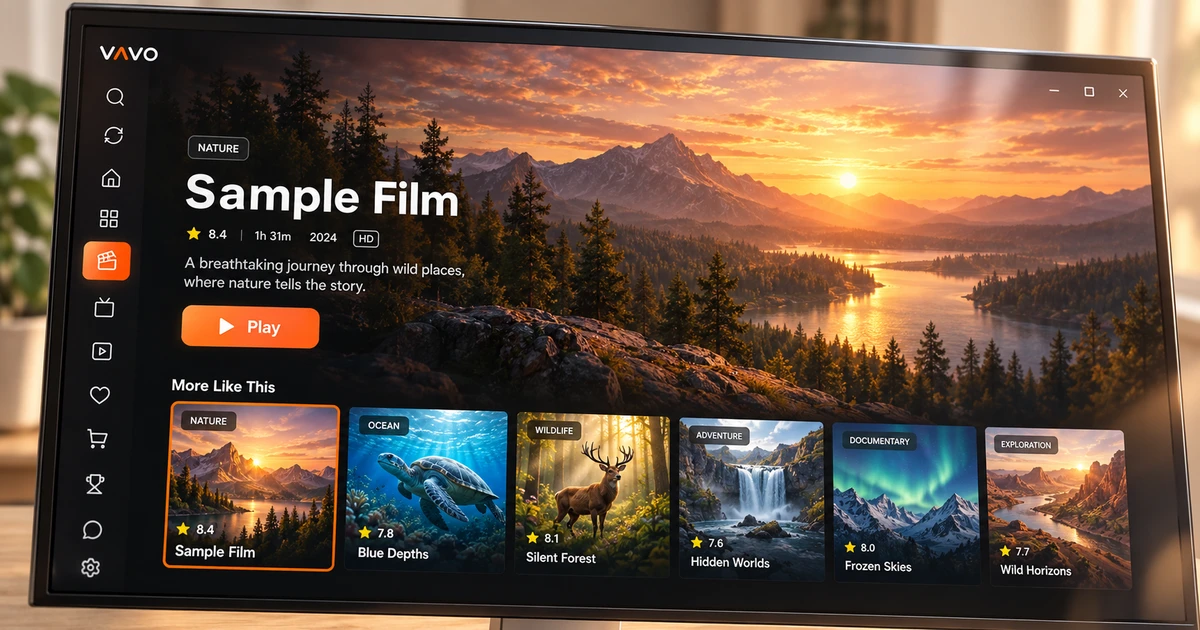

Looking for a GOM Player alternative? Focus on what will improve daily viewing. If you want a visual film and series library, season browsing and options for your television, we recommend Vavo Player. Explore its Windows controls and supported TV platforms, then try your own media for 60 days free before buying.
- Visual film and series library
- Windows, LG and Samsung options
- 60 days free trial
Think about your library as well as the video file
Opening a video is the first need in choosing a media player. But if you're returning to your own collection every evening, you may be looking for more. You may want to look at the information before selecting the movie, return to the unfinished series, or adjust the library view to suit your screen. Vavo Player's approach is to combine these daily needs into a visual personal library.
The GOM Player documents reviewed include recently played, continued and favourite features. Therefore, we do not base the selection of Vavo Player on the claim that these do not exist on the other side. All we highlight are; visual movie and series library, detailed controls on Windows, and platform experiences that you can choose according to your own television.
Check out this library approach on our media player for Windows page. Searching for movies within your own collection, looking at genres, and returning to the unfinished section are all parts of daily use. The reason we highlight Vavo Player is that it offers a place where you can start from a single file and evaluate your entire personal viewing setup.
Get to know a film before choosing it
You don't always know which movie to turn on. Vavo Player's Windows library offers visual cards, genre filter, in-category search and new additions to different beginnings. While you may be looking for a title you know one evening, you may want to make a new selection from your collection the next evening.
Examining the summary, score and trailer available in the content information helps you get an idea about the movie. The data in your source affects this view; That's why it's important to try it with your real media. Evaluate the library view on your own screen with card size, name display and sorting preferences.
Options like hiding items that don't have images also help you keep your desktop collection personal. The goal isn't just a beautiful first screen. It is important that you can choose what to watch more easily when you open the same library weeks later. You can see this integrity by using Vavo Player on several different movie evenings.
Follow your series at your own pace
Watching series is a more personal habit than choosing the next title from the list of files. Vavo Player on Windows makes it easy to get back to the right content with season tabs and an unfinished episode marker. The remaining time in the Continue Watching section can help you decide based on the time you have available that evening.
You can remove the content you no longer follow from the Continue Watching list, and then add the movie you want to watch later to your favourites. Use the next episode countdown when you want to continue. Cancel when you want to take a break. These details ensure that your viewing session progresses with your decisions.
Make playback on Windows suit you
You can use existing audio and subtitle tracks in Vavo Player with your own media. In Windows, the size, colour and background appearance of the subtitle can be adjusted for your reading comfort. Also consider playback speed and display preferences based on your personal use. You don't have to change every setting. It's important to have the control you need.
Mini player helps you minimize your video session and move to another area on your computer. You can return to the session when you want to watch it on the big screen again. These desktop options allow Vavo Player to maintain its personal approach to the library after the video has started.
Find options for LG and Samsung televisions
The reviewed download page of GOM Player includes Windows, Mac and mobile options. LG webOS and Samsung Tizen are not among the platforms described on that page. If you are looking for a separate player experience for your own television, Vavo Player's LG TV player and Samsung TV player pages are options you can directly consider.
See TV remote navigation, visual library, favourites and pick up where you left off approach. Don't assume that all the advanced desktop controls in Windows have been ported to the TV. The advantage of Vavo Player is that it offers options on different screens; The features of each version should be evaluated according to the relevant platform page.
Try the value of a paid player before buying
GOM Player is available in a free version and separate paid product options. Your reason for switching from a free player to paid software should be an experience that actually works for you. In Vavo Player, this decision is about visual library, personal Continue Watching layout, desktop controls and how well the supported TV options fit your habits.
Vavo Player licensing options are $9 for 12 months on a single device or one-time $18 for lifetime use. Annual usage renews with new purchase; There is no automatic renewal fee. One licence is tied to one device. If you want premium use on more than one screen, consider the number of devices separately.
The 60-day free trial gives you ample time to see this value without purchasing. Create real sessions with your own authorised media. Vavo Player does not provide channel, movie, series or media subscriptions; Opens licence software features.
Compare the Vavo Player differences that matter
| Your priority | Vavo Player | GOM Player |
|---|---|---|
| Visual personal library | Movie cards, genres and content information on Windows. | Video player product family; Features vary depending on version. |
| LG or Samsung TV | Separate pages for the two TV platforms. | These TV platforms are not included in the reviewed download list. |
| Windows viewing | Library preferences, season tracking and mini player. | Desktop player; Do not base the selection of Vavo Player on a single feature-absence claim. |
| Price | $9 annual or $18 lifetime on a single device. | Free GOM Player and separate paid product options. |
| Trying Vavo Player | 60-day free trial with your own media. | Different product; Its scope is also evaluated. |
Questions about switching from GOM Player
Why would I choose Vavo Player over the free player?
If the visual movie and series library, personal attendance plan and TV options add value to your use, you can consider it in the 60-day trial.
No favourites in GOM Player?
Reviewed documents include favourites and continuation features. Vavo Player's recommendation is based on his entire library and platform experience.
Is one licence enough for computer and TV?
In Vavo Player each licence is tied to one device. Separately consider the need for premium licensing for individual displays.
Our recommendation for your personal library: Vavo Player
If you want to return to your own movies and series from a visual perspective, use personal controls in Windows, and find the appropriate option for your television, start with Vavo Player. Try it for 60 days with your real collection. Make your licensing decision after seeing the convenience it offers to your daily viewing habit.
Don't just open and close the same movie during the trial. Select a few contents, create your favourites and return to the unfinished episode of the series you follow. Watch with your own subtitle preferences. Consider the mini player according to your desktop usage. The fact that these areas work together for your daily work shows the value of switching to paid software for you. You can decide to switch to Vavo Player versus a free product not just on price, but on how you want to use your personal media.
This article is Vavo Player Team's recommendation for users evaluating their product. GOM Player is an independent third-party product name; There is no affiliation, endorsement or claim of measured performance superiority.
Find your Vavo Player experience.
Explore the features for your screen and try Vavo Player with your own media.