OttPlayer alternative: turn your playlists into a visual library with Vavo Player
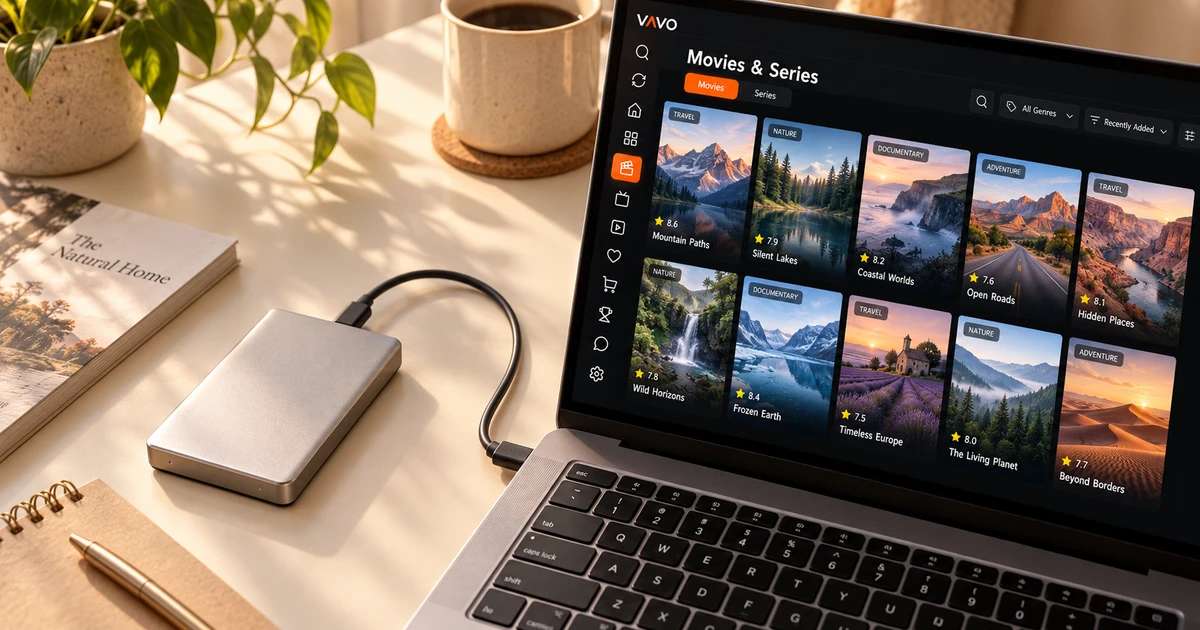

Looking for an OttPlayer alternative? Give your own playlists a more personal home. Vavo Player brings films and series into a visual library with categories, favourites and Continue Watching. Explore Windows, Mac and supported TVs. Try your own authorised media for 60 days free, then consider a $9 annual or $18 lifetime licence for one device.
- From lists to personal media library
- Favourites, categories and more
- 60 days free trial
Your playlist works; now choose how you want to use it
Adding your own media source is the start. The real daily experience comes in how you find what to watch within that source. As the library grows, it can become difficult to remember each item by name. Vavo Player's visual approach to movies and series helps you make choices more easily through cards, categories and search. Your feed becomes a personal media space that you will return to again and again.
When choosing a OttPlayer alternative, don't just look at the supported list type. Also consider actions such as adding a movie to your favourites, returning to an unfinished video, or reviewing series seasons. Vavo Player addresses these daily needs as part of the library and playback experience. A few real usage sessions will show you which convenience helps you more.
There are different device options on the download page of OttPlayer. The reason for choosing Vavo Player should not be just to be able to install another application. Try out how visual library works on your own Windows computer or supported TV. Base your choice on the usage pattern the app you'll be opening again each day establishes with your media.
Give films and series more than a list of names
Making a selection in the library sometimes starts with looking at the name of a movie, sometimes its genre or poster. New additions to Vavo Player's Windows experience, genre filters and in-category search, offer different starts for different needs. Looking at the synopsis and trailer available in the information area makes it easier for you to decide within the library what content to watch.
Card size and name display preferences allow you to tailor the appearance of your library to your own screen. You can hide non-image items and change sorting options. In a large collection, these details aren't just to make the screen look fuller. It serves to move your own media into an order that you can easily read and reuse.
In series, season tabs and unfinished episode markers give you a way to navigate back to the right video. If you want to continue watching after an episode of a series, you can use the next episode countdown in Windows. You can cancel whenever you want to take a break. Vavo Player's archival approach considers selection and follow-up together.
Make room for your films alongside live viewing
One day you follow a live program, another day you return to your own film or personal video library. You can evaluate these usage needs through the relevant sections in Vavo Player. Working with existing program data in Windows, the guide provides a way to find the program by selecting the day and category. The information your source provides is the basis of the guide you can see on the screen.
When choosing movies and series, the visual library, favourites and Continue Watching section come to the fore. Consider your single app choice for the different sessions you spend with your own media, not just for opening a stream. The difference of Vavo Player is that you can use these daily use areas according to your personal choices. See what information and controls are available with your own source during the trial period.
Vavo Player is not a content provider. The presence of contacts data or a media section does not mean that the application offers you programs or movies. You add compatible resources that you are authorised to use. Your licensing decision is based on the software features offered to use these resources on your particular device.
Return through favourites or Continue Watching
Adding a movie you want to watch in the future to your favourites can reduce the need to search again on another evening. Vavo Player's favourites are for you to keep your selections in a separate place within your own library. The Continue Watching section offers a different start for videos you have started but not finished. You can use these two ways together according to your daily habit.
In Windows, you can view remaining time information and remove content from the Continue Watching list that you are no longer interested in. This leaves this space handy for the videos you really want to get back to, rather than a messy dump of the entire history. Try returning to the same content a few days later. Vavo Player's personal layout makes sense with how it provides ease of use.
Don't assume that there will be automatic shared viewing history across different devices. Create your own resources and preferences for each version. Do not expect your favourites, accounts and settings to be transferred automatically when coming from OttPlayer. Keeping a copy of your source information and setting up your own layout in the new player makes the transition clearer.
Choose the Vavo Player version for your screen
Check out the desktop library and controls on our media player for Windows page. You can evaluate options such as mini player, subtitle view and playback speed with your own videos. There is also a macOS media player page for Mac. The features and compatibility of each version should be examined for your specific display.
LG TV player and Samsung TV player options allow you to start using the remote control on your television. There are also platform pages for Android mobile, Android TV and Fire TV. Start with the compatible display you use most often; Experiment before assuming that the detailed settings of all platforms are the same.
Why choose Vavo Player as an OttPlayer alternative?
| Your daily need | Vavo Player approach | What to try |
|---|---|---|
| Choosing a film | Visual cards, search, and genre filters in Windows. | The path you use to find content. |
| Following a series | Season order and Continue Watching section. | Back to the correct section. |
| Personal choices | Editing the Continue Watching list in favourites and on the desktop. | Follow the content you want to open again. |
| Choosing a licence | 60 days free trial. | Multiple actual viewing sessions. |
Start with clear licensing for one device
Vavo Player licensing options offer 12 months $9 or one-time $18 lifetime use for a single device. Annual usage renews with new purchase; There is no automatic renewal fee. If you intend to use premium on another device, a separate licence is required. The 60-day free trial is for you to make this decision with your library and daily habit.
Purchase does not include movie, series or media subscription. Vavo Player provides software licence. Add your own sources, try out existing audio and subtitle tracks, and use the library layout in several different sessions. Choose the licence based on the features you actually use on your particular display.
Questions about switching from OttPlayer
Should I re-add my sources?
Add your own compatible resources to Vavo Player. Do not assume automatic account or favourite transfer.
Is the same licence valid for TV and computer?
Each licence is tied to one device; separate premium usage requires separate licence.
Does Vavo Player provide the programs in the guide?
Vavo Player does not provide content. The availability of contacts and media information depends on the support of your own resources.
Give your playlists a personal visual home
As an alternative to OttPlayer, highlight Vavo Player with the convenience you will use when returning to your library. Check out the option suitable for your device, add your own media and try the visual library, favourites and Continue Watching section in real use for 60 days.
This article was prepared by Vavo Player Team. OttPlayer's download coverage was reviewed on its official page on October 7, 2026; may change. Brands are independent. Evaluate Vavo Player features for your own platform.
Find your Vavo Player experience.
Explore the features for your screen and try Vavo Player with your own media.