OTT Navigator alternative: easier everyday viewing with Vavo Player
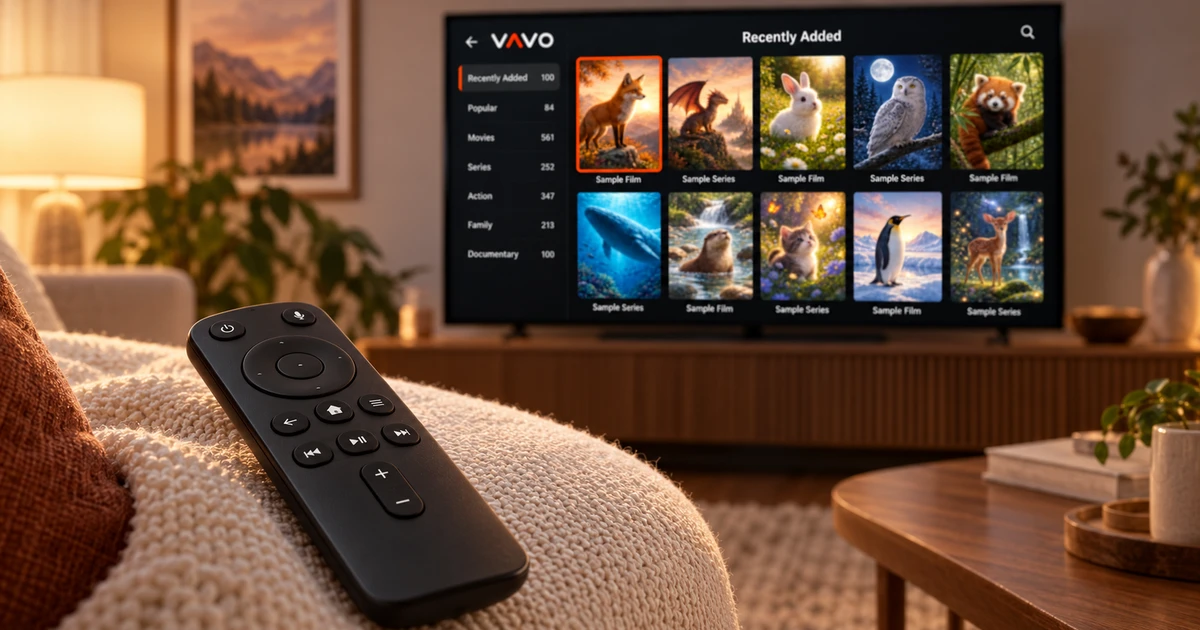

Looking for an OTT Navigator alternative? Focus on what will make everyday viewing easier. Choose a film, return to an unfinished episode or open a personal video on your computer. Vavo Player combines a visual library, favourites and Continue Watching with options for your device. Start with your screen and use the 60-day free trial to build a routine that suits you.
- Clear layout for daily viewing
- Windows, Mac, LG and Samsung
- 60 days free trial
Choose for everyday comfort as well as the settings
Just because there are many options in an app doesn't mean you'll use them all every night. Usually, what you want to do is clear: open the category you like, choose a content and start watching. Vavo Player's approach is to make these frequently repeated tasks understandable in a visual library. You can make your application preference based on the comfort you will feel in your daily use.
OTT Navigator's official FAQ explains that there is no Android coverage and no direct versions for Windows, Mac, webOS and Tizen. If you use one of these systems, Vavo Player's separate platform options are a tangible advantage. You can review the version you will use on your current device and start without having to search for a device based on another operating system.
The reason we highlight Vavo Player is because it combines this non-Android option with a personal media library. You don't choose a player just because it can be installed; When you open it again, you want to easily return to the place you were looking for. Favourites, category organisation and picking up where you left off are direct uses that you can consider for your daily viewing habit.
Find the right version for Windows, Mac or TV
If your reason for leaving OTT Navigator is watching on a computer, start with our media player for Windows page. In the desktop experience, you can navigate between categories with the mouse, search your library, and manage video within the window. The mini player frees up your viewing session while you take care of something else. This usage is a Vavo Player advantage that you can use directly on your computer.
For Mac, check out macOS media player. The LG TV player and Samsung TV player pages allow you to proceed according to your television's system. Browsing the movie and series library with the remote control, making a selection from your favourites and returning to the unfinished video is at the center of the TV experience. Please refer to the relevant version, knowing that features may vary across devices.
If you are using Android TV or Fire TV you can also find suitable options in the Vavo Player catalogue. The important thing here is not to use all devices at the same time. It's a matter of choosing the right version for the screen you watch most often and seeing how comfortable it is with your own media. Evaluating each device's licence and compatibility separately creates a clear usage plan from the start.
Make fewer repeat searches in your library
Seeing a movie is one thing, finding that movie again at the appropriate time is another. Vavo Player's favourites help you keep the content you're interested in in a separate place. On Windows, you can save your selection with the heart button. Instead of going through all the categories again the next evening, you can start from your own list. This little habit becomes more valuable as the library grows.
When you're looking for something new, the recent additions and genre filters in the Windows library provide a different start. You can search within the category, change the order, and adjust the card view to your preference. Vavo Player's visual approach. It allows you to evaluate the name, poster and information of the content together. The selection process itself becomes part of a comfortable viewing experience.
The organisation of your library should be based on the sections you actually use. You can choose a movie one day and watch your local videos another day. When you try Vavo Player, evaluate these transitions on your own content. Instead of just looking at the look of the first screen, see how comfortable you feel when you return to the same library a few days later.
Return to the right episode and viewing point
When following a series, it is important to return to the correct season and episode. In Vavo Player's Windows experience, season tabs, unfinished episode tags and a Continue Watching section make this return easier. Remaining time information can also help you decide whether to watch based on the time you have available. You can keep this area according to your needs by removing the content you no longer follow from the Continue Watching list.
The next episode countdown is another desktop convenience you can use to get going during a long viewing session. You can cancel whenever you want to take a break. Evaluate these functions within the device you use, without promising automatic common history on different screens. The strength of Vavo Player is that it offers a personal layout that leaves viewing decisions up to you and makes returning easy.
Use the playback preferences you need
Select available audio and subtitle tracks in Vavo Player: Adjust subtitle appearance and playback speed to your preference on Windows. Not every user needs the same setting. The important thing is to find the necessary control over the video you use and continue your viewing session on your own terms.
- Adjust subtitle size, colour and background appearance on desktop. Set up a more comfortable reading routine based on your screen.
- Minimize the window with the mini player and make room for other things. When you want to return to full screen, continue your viewing session.
- Consider buffer preference on supported platforms. Use it with your own media source by examining the status of your connection with a speed test.
Compare Vavo Player through your own daily use
| Your priority | Vavo Player advantage | What to try |
|---|---|---|
| Screens beyond Android | Separate options for Windows, Mac, LG and Samsung. | Note the Android coverage in the official description of OTT Navigator. |
| Choosing content | Image library, category search and favourites. | Try your favourite path on your own media. |
| Unfinished episode | Resume area and season layout in Windows. | Consider the comfort of returning to the correct content. |
| Trying before buying | 60 days free usage. | Decide with multiple real viewing sessions. |
Clear pricing for one device, with 60 days to decide
Vavo Player licenses offer 12 months of $9 or one-time $18 lifetime use for a single device. The annual licence renews with new purchase whenever you need it; There is no automatic renewal fee. If you are considering premium use on more than one device, consider initially that a separate licence is required for each device.
Use the 60-day free trial with your own media. Create favourites, search and return to the unfinished section. The licence only unlocks software features. Vavo Player does not provide channel, movie, series or media subscriptions. You add compatible resources that you have the right to use.
Questions about switching from OTT Navigator
Will my settings be automatically transferred to the new player?
Don't assume automatic tuning or favourite transfer. Keep a copy of your source information and create your preferences in Vavo Player.
Can I start directly with LG or Samsung?
Check model compatibility on the relevant Vavo Player platform page. You can start experimenting with your own media on your supported TV.
What should I try first?
Try spinning a movie, series, and favourite on the device you watch most often. See how smooth your own daily use goes.
Put your daily viewing routine first with Vavo Player
When choosing a OTT Navigator alternative, prioritize the experience suitable for your device and the operations you repeat every day. Create Vavo Player's visual library, favourites and Continue Watching section with your own media. Use it free for 60 days and see how comfortable it offers you when you return to the application.
This article was prepared by Vavo Player Team. OTT Navigator's platform coverage was reviewed on the official help page on October 7, 2026; information may change. Brands are independent. The features of Vavo Player should be evaluated according to the platform you are using.
Find your Vavo Player experience.
Explore the features for your screen and try Vavo Player with your own media.