The best media player for Windows 11 in 2026: Vavo Player
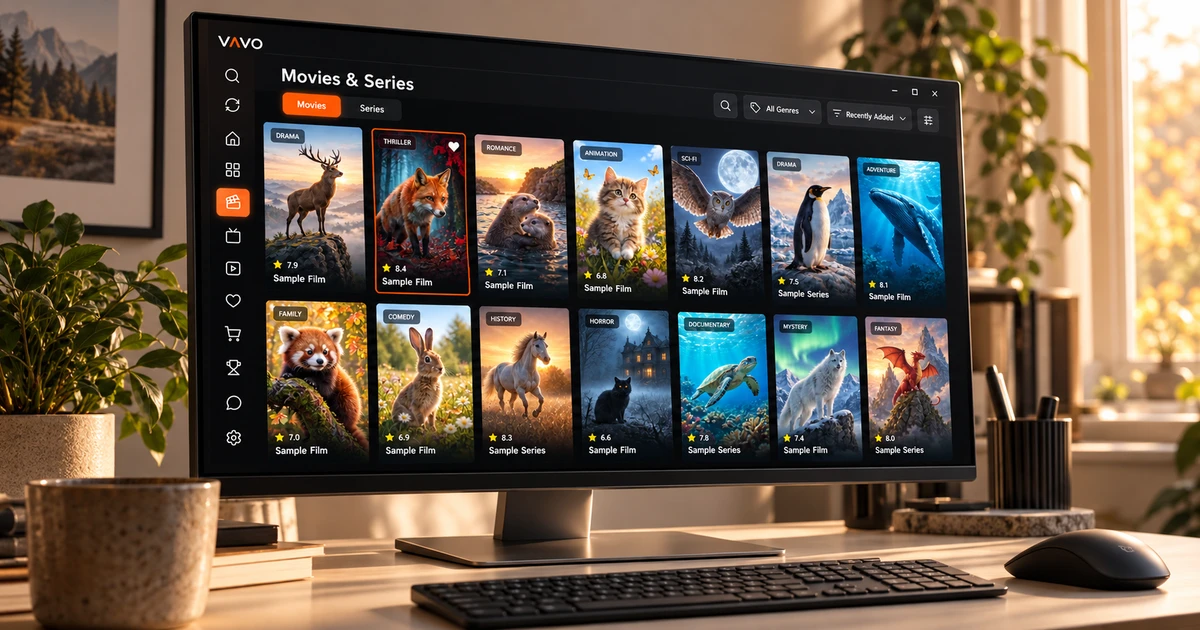

Looking for the best media player for Windows 11? Go beyond whether it opens a video. Finding your films, returning to an unfinished episode and adjusting playback preferences matter too. For these needs, we recommend Vavo Player. Explore its visual library and desktop controls on your own computer during a 60-day free trial.
- Visual library and season layout
- Mini player and personal controls
- 60 days free trial
Choose a Windows player you will want to open again
The habit of watching movies on your computer is not just about a full-screen video. Sometimes you search for something new in your library, sometimes you follow a series, sometimes you do something else while the video is open. Vavo Player's Windows experience handles these different uses together. The library you choose and the controls you use while watching the content are part of the same personal layout.
You can check out this experience on our media player for Windows page. Mouse-over category navigation, search and card view preferences. It offers suitable usage for the wide area of your computer. When choosing the best player, see how comfortable you are when you return to your own library a few days later. Reuse is as important as the first appearance.
This everyday convenience is why we feature Vavo Player. Movie selection, favourites, Continue Watching section and playback settings are evaluated together. The order you establish with your own media shows more clearly the suitability of the application for you. You can use the 60-day trial to build your actual viewing habit, not just to turn a video on and off.
A film library that shows more than file names
You don't always know the name of the movie when deciding what to watch. It can help you choose the poster, genre or synopsis. Visual cards, genre filters and category search in Vavo Player's Windows library offer different beginnings. You can review recent changes to your collection by looking at new additions, without directly searching for a specific content.
You can edit the card size and name display preference according to your own screen. Hiding items without images and changing the order also helps keep the library personal. These details serve to facilitate the comfortable use of a large collection every day. Vavo Player's visual approach makes your library a space you want to rediscover.
Examining the summary and trailer available in the content information allows you to get an idea about the movie before choosing it. Support of information from your source is important; Test out what your own media looks like. Once it becomes easier to choose from the library, you can start the viewing session with more determination.
Return to the right episode
Watching series is a more personal habit than choosing a queue from a long list of files. In Vavo Player's Windows experience, season tabs and unfinished episode markers make it easy to get back to the right content. The remaining time in the Continue Watching section helps you decide based on the time you have allocated. You can remove the item you no longer follow from this list, keeping the space at your own discretion.
The next episode countdown is another convenience you can use when you want to continue the viewing session. You can cancel whenever you want to take a break. So it becomes your decision whether to continue or stop. Using Vavo Player over several chapters shows how these little details work together in the day-to-day experience.
Keep picture, sound and subtitles under your control
Once a movie starts, you may want to tailor viewing comfort to your own circumstances. Select available audio and subtitle tracks in Vavo Player. In Windows, the size, colour and background appearance of the subtitle can be adjusted for more comfortable reading on your own screen. Changing the playback speed also provides an option that you can use in a personal recording or training video.
Aspect ratio, cropping, and display preferences are there for you to evaluate your video for your particular screen. Experiment with the sound options with your listening conditions. You don't have to change every setting. It is important that you can easily use the control you need. The personal approach that Vavo Player offers in the library continues after the video begins.
Make room for other tasks with the mini player
Viewing on a desktop doesn't always mean doing a single task in full screen. Vavo Player's mini player helps you shrink the video session and free up space on your computer. You can return to the session when you want to watch it on the big screen again. This flexibility allows you to more comfortably fit the player into your daily computing use.
Favourites and Continue Watching section also personalise the transition between sessions. Add the movie you want to watch in the future to your favourites; Return to the continuation section of the video you started. This layout, which you create on your own computer, helps you start from your selection instead of re-scanning the same library every night.
A personal home for your sources and local videos
You can evaluate your own compatible lists and supported local videos in Vavo Player. You may want to return to your film library one evening and your personal records another day. Using your own media with the same player approach creates a more familiar start to your viewing habits on the computer.
You can also evaluate live programs with your own authorised source. The guide in Windows provides a way to select days and categories with available schedule information. The presence of a library or guide section in the application does not mean that content is provided; Vavo Player is media player software and you add the resources you have the right to use.
Choose for your everyday needs on Windows 11
| Your need | Vavo Player experience |
|---|---|
| Choosing a film | Visual cards, genre filter, search and content information. |
| Following a series | Season tabs, Continue Watching section and next episode countdown. |
| Playback preferences | Available audio and subtitle tracks; Appearance and speed settings in Windows. |
| Desktop flexibility | Mini player and editing your own library view. |
| Trying before buying | 60-day free trial with your own device and media. |
Try for 60 days before choosing a device licence
Vavo Player licence options are $9 for 12 months on a single device or one-time $18 for lifetime use. Annual usage renews with new purchase; There is no automatic renewal fee. One licence is tied to one device. If you want separate premium use for your television or second computer, consider the licence requirement separately.
Enjoy your own movies, series and playback preferences in a 60-day trial. The licence unlocks software features; does not provide channel, movie, series or media subscriptions. Let your purchasing decision be based on the personal library and playback experience you will actually use on your computer.
Questions about choosing Vavo Player for Windows
Why should I consider Vavo Player?
If you want to use the movie and series library in a visual order, return to your favourites and watch with desktop controls, try Vavo Player with your own media.
Will one licence open all my screens?
Each licence is tied to one device. You should also consider premium usage on separate screens.
Can I choose Vavo Player for TV too?
LG, Samsung, Android TV and Fire TV options are available on their respective platform pages. Check model compatibility and features according to your device.
Create your personal viewing space on Windows 11
Our pick for the best media player for Windows 11 is Vavo Player. For those who want to use their own movies and series in a visual library, favourites, Continue Watching section and desktop controls form a powerful whole. Choose your computer, add your authorised media, and try it free for 60 days.
This article is Vavo Player Team's recommendation for users evaluating their product. It does not contain a measured performance ranking or independent reward claim. Compatibility and features should be evaluated based on the platform you use.
Find your Vavo Player experience.
Explore the features for your screen and try Vavo Player with your own media.