VLC alternative: a visual film and series library with Vavo Player
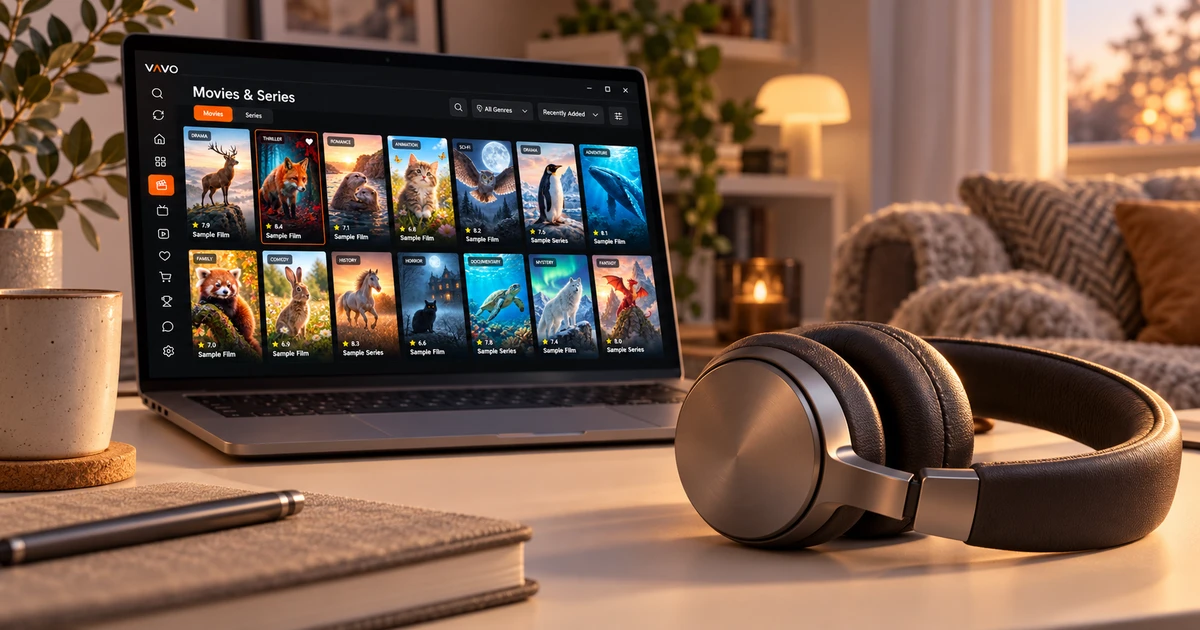

Looking for a VLC alternative? You may want more than a way to open videos: a visual film and series library, favourite titles and an easy return to unfinished episodes. Vavo Player brings these needs together in a personal media experience. Explore Windows and other supported platforms, then try your own media for 60 days free before choosing a licence for one device.
- Visual library for movies and series
- Favourites and continue where you left off
- Personal playback preferences in Windows
Choose a viewing space you want to return to
Opening a video and using your own library every evening are different needs. Playback may be sufficient when watching a single file. When your movies and series increase, finding content, making choices and returning to unfinished videos also become important. Vavo Player's visual library approach brings these daily transactions together in the same personal media layout.
The reason why we highlight Vavo Player for the user who is searching for an alternative to VLC is that he/she considers choosing movies and series as part of the viewing experience. You can navigate through your own compatible resources via categories, search and favourites. On Windows, genre filters, new additions, and seasonal order also open different ways to use your library.
Evaluate this difference with your own media. Look for a new movie one evening, return to the series you started another evening. How comfortable does it feel to select in the library and return to the video? Vavo Player's 60-day trial gives you time to create your own daily habit of choosing the reason for your choice.
Get to know a film before choosing it
When you don't remember the name of a movie, its poster or genre can help you choose. In Vavo Player's Windows library, visual cards, genre filters, and in-category search work together. Looking at the synopsis and available trailer makes it easier to decide what content to watch. Your media's information and images may vary depending on the source. Check out how it looks in your own collection.
Card size and name display preferences adapt to how you want to read the screen. You can hide items that do not have images and change the order. In a crowded collection, these details help you organise the library you use every day more easily. Evaluate Vavo Player on your own screen with these viewing preferences.
Continuing the visual approach when switching between movies and series can make the library a more familiar space for you. Selecting episodes from the season tabs of series and distinguishing the unfinished video makes it easier for you to follow a long viewing habit. You can review this experience on our media player for Windows page and start trying it with your own resources.
Keep planned films and unfinished episodes easy to find
Wanting to watch a movie later is not the same as taking a break from a video. In Vavo Player, the favourites and Continue Watching section helps you consider these two needs separately. You can add the content you are interested in to your favourites and return to the video you started from the continue section. This way, you can start from your own selections instead of revisiting the entire library every evening.
On Windows, you can see the remaining time in the Continue Watching list and remove the item you no longer follow. Using or cancelling the next episode countdown in the series session also leaves the decision to continue up to you. What makes an app feel personal comes not just from how it looks, but also from how you keep track of your choices with repeat use.
This layout is evaluated within the device you use. Don't assume that watch history on another screen will automatically move to a common area. Create your own resources and favourites in the app when switching to Vavo Player. Returning to the same library on different days during the trial period allows you to experience the ease of use with your real habit.
Use your own picture, sound and subtitle preferences
In Vavo Player you can select existing audio and subtitle tracks in your video. Edit the size, colour and background appearance of subtitles in the Windows experience so that you can read them more easily on your own screen. Playback speed, aspect ratio, and display preferences are also options you can use for your own content. Consider the reach of these controls with videos you open frequently.
The mini player helps you minimize your viewing session when you want to do other work on your computer. When you want to return to the video in a larger area, you can proceed in the same usage. Managing the transition to the next episode in series viewing is another part of daily comfort. Using Vavo Player's libraries and controls together gives a concrete reason for your alternative choice.
You may want to highlight the audio in one personal recording, and read the subtitles more easily in another video. Try Vavo Player's Windows controls with these frequently used needs in your own content. Opening the same video in different window sizes and changing your preferences during the trial can show which setting helps your daily usage. Real sessions with your library will base your purchasing decision on your own experience.
Find options for a computer and supported TVs
If you are using a Mac, you can check the relevant Vavo Player option on the macOS media player page. The LG TV player and Samsung TV player pages are starting points for the compatibility of your own television. Browsing through the movie and series libraries, returning to favourites, and using the Continue Watching section with the TV remote control are the highlights.
There are also platform options for Android mobile, Android TV and Fire TV. The features and licence of each version are evaluated separately. Without assuming that the detailed controls in Windows are the same on all screens, look at the page of the device you will use. Starting the trial with the compatible display you use most often makes it easier to familiarize yourself with the new player.
Compare the experience you want from Vavo Player
| Your need | Vavo Player value | What to try |
|---|---|---|
| Choosing a film | Visual cards, search, and genre filters in Windows. | The convenience of deciding what to watch from the library. |
| Following a series | Season layout, Continue Watching section and episode markers. | Back to the right section another day. |
| Personal choices | Editing the favourites and Continue Watching list. | Saving content you want to watch in the future. |
| Playback preferences | Audio, video and subtitle controls in Windows. | Using available options on your own video. |
Understand the value of a paid licence
VLC is a free player. Vavo Player's licence unlocks personal library and software features: 12-month use for single device is $9, lifetime use is one-time $18. Annual licence renews with new purchase; There is no automatic renewal fee. Evaluate your choice not only on price, but also on the experience you will have with your own media.
You can try it free for 60 days before licensing Vavo Player. One licence is tied to one device; Premium usage on the second device is evaluated separately. The licence does not include channel, movie, series or media subscriptions. You add your own resources that you have the right to use.
Questions about switching from VLC
Why should I pay Vavo Player?
If you find the visual library, favourites and continuation layout valuable for your own use, consider the licence. Use the 60-day trial with your own media first.
Will my videos and settings be moved automatically?
Don't assume automatic transfer. Add your own compatible sources and create your favourites and playback preferences in Vavo Player.
Will one licence unlock all my devices?
No. One licence is tied to one device; Plan premium usage on different screens separately.
Make room for your film and series library
Consider Vavo Player as an alternative to VLC, with the convenience of choosing and reusing your own library. Select the compatible device you use most often. Create your daily viewing routine with favourites, resume area and playback controls in a 60-day trial.
This article was prepared by Vavo Player Team. VLC's free usage information has been reviewed from the official VideoLAN page. The name VLC identifies the product being compared. Vavo Player is a separate product; Its features should be evaluated according to your platform.
Find your Vavo Player experience.
Explore the features for your screen and try Vavo Player with your own media.